
Native apps
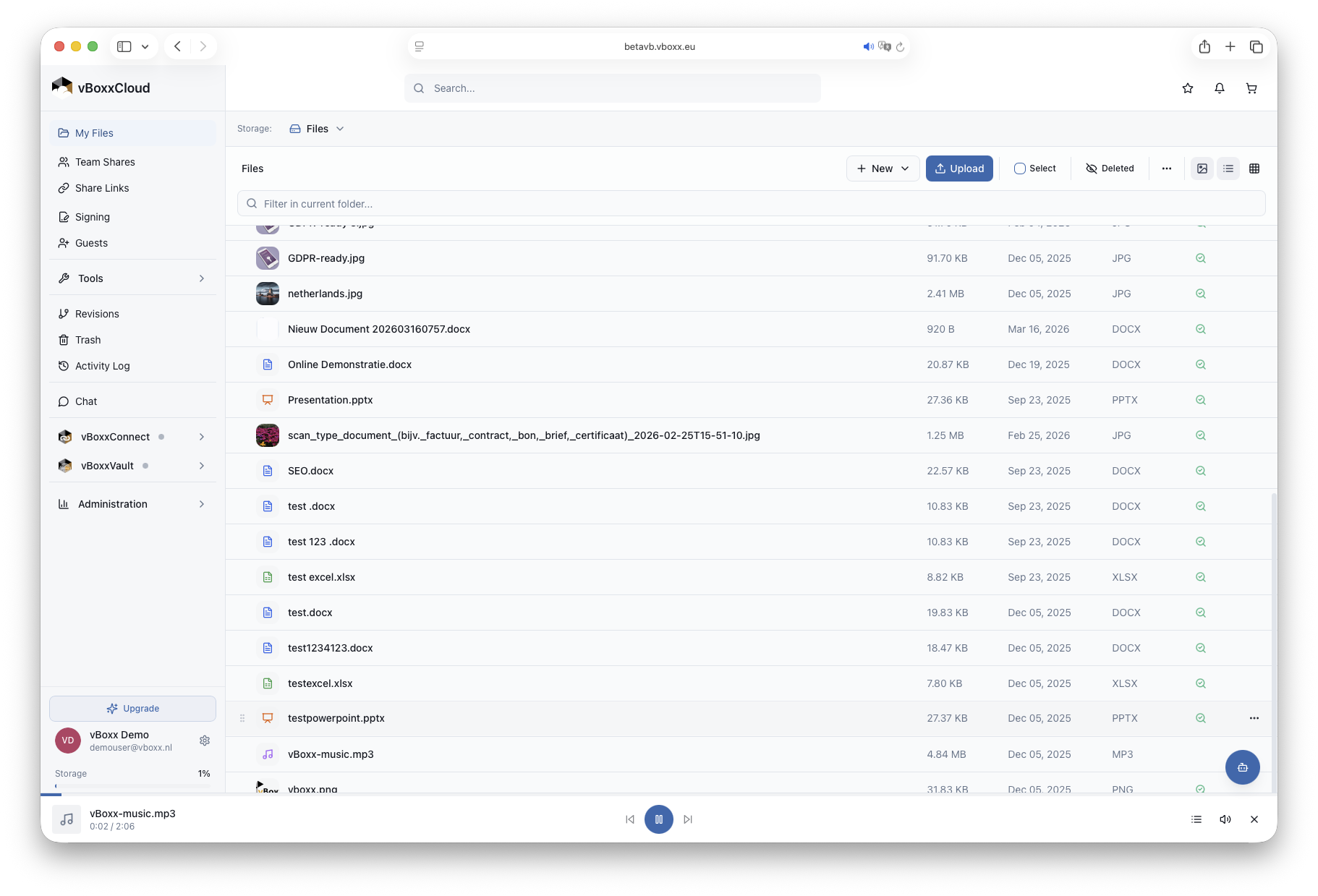
vBoxxCloud native apps for macOS, Windows, iOS and Android open your files without a browser.
Real-time sync
Real-time sync shows every file change on web, desktop and mobile within seconds.
Offline access
Offline access lets you pin files to your device and keep editing without an internet connection.
Virtual drive
The virtual drive on Windows downloads a file only when you open it, saving disk space.
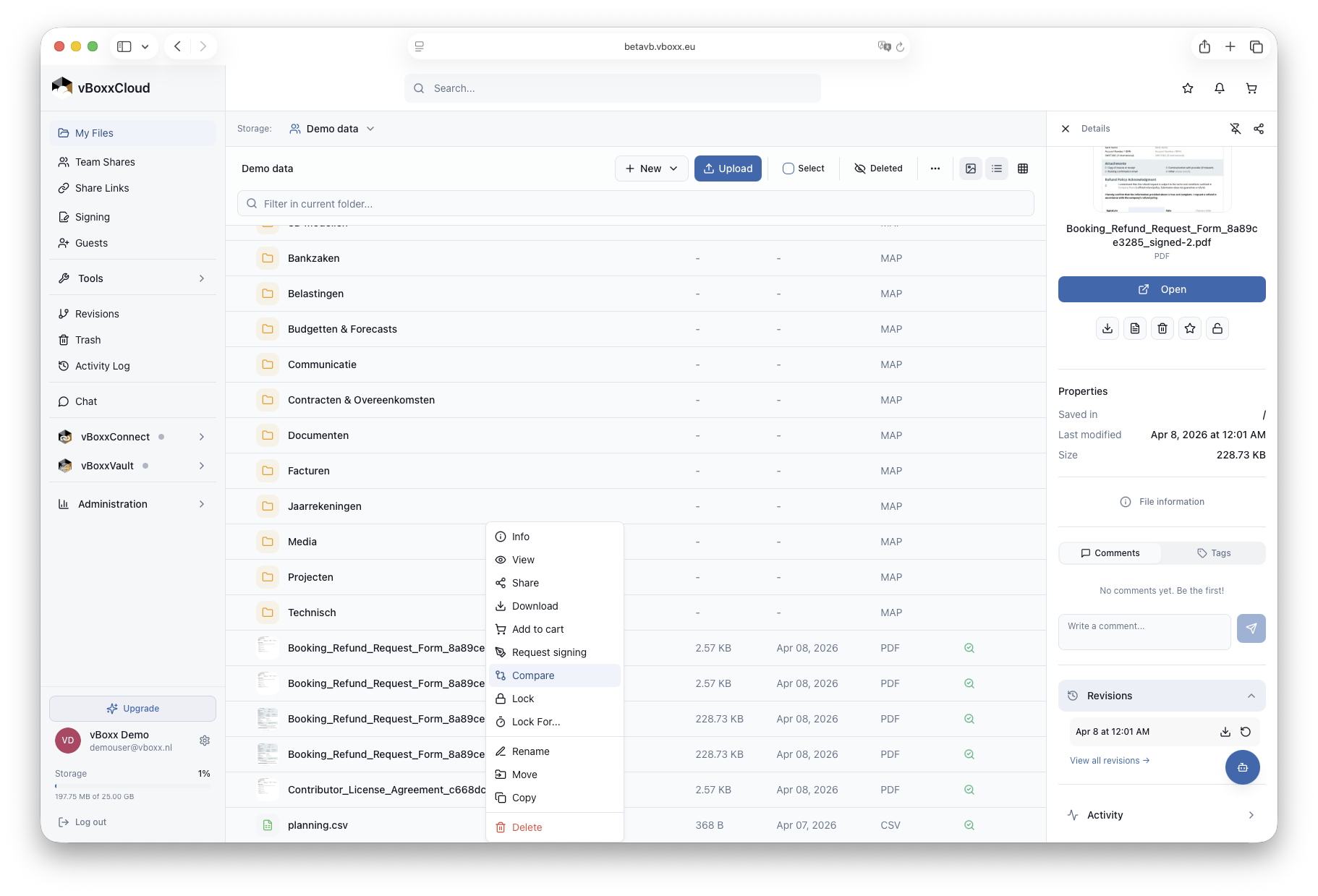
Right-click to share, sign or restore
In Finder or File Explorer, right-click any vBoxxCloud file to create a secure share link, request eIDAS-compliant signing, restore an earlier version or invite a guest.
- Secure share links with expiry
- Send for eIDAS-compliant signing
- Version history & restore
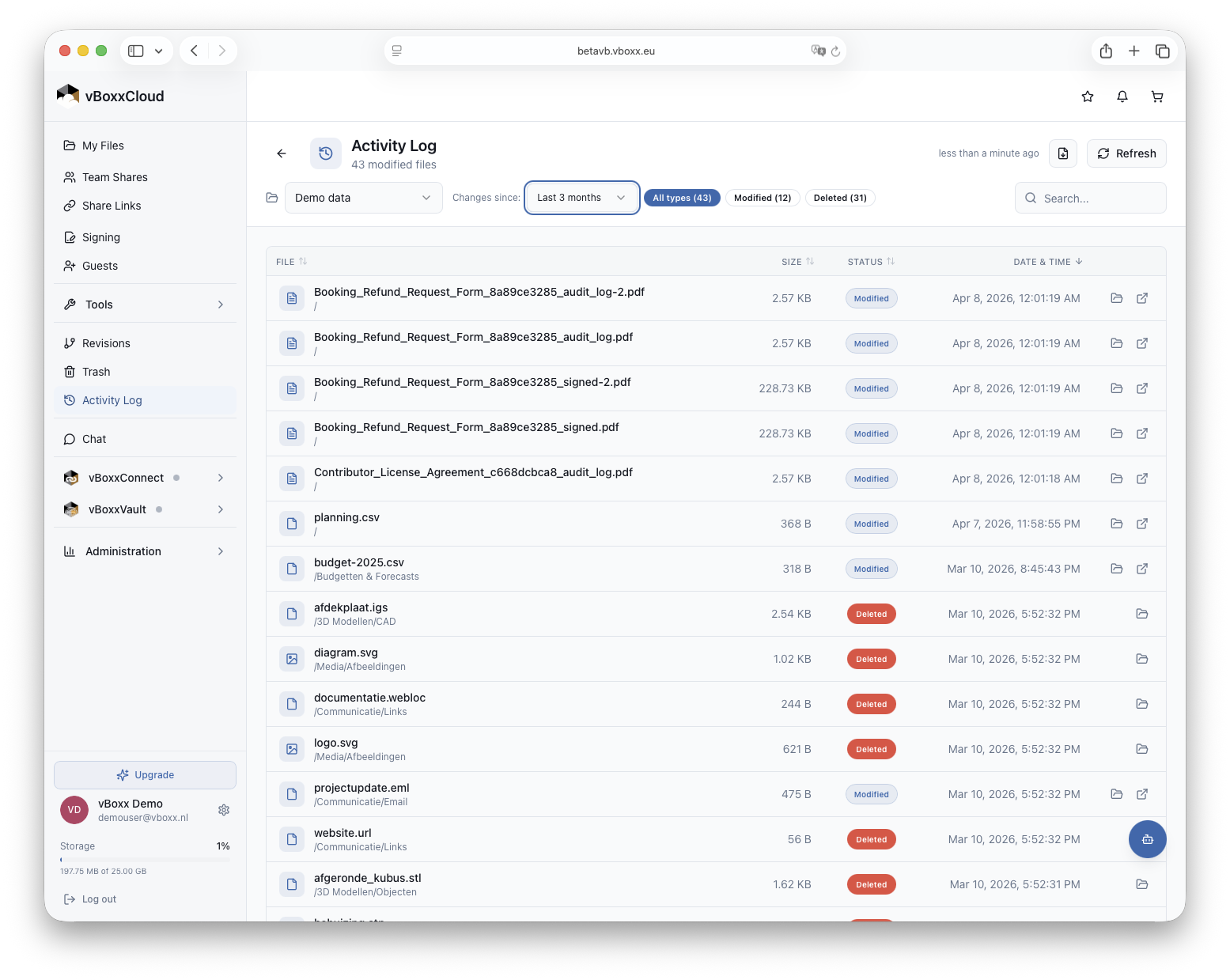
Notifications for file activity
Desktop notifications tell you when a colleague comments on a file, a contract is signed or an upload is complete. See recent activity from the menu bar or system tray.
- Menu-bar & system-tray glance
- Per-channel notification rules
- Quiet hours to pause notifications
Keyboard shortcuts for everything
Press ⌘K (or Ctrl+K) anywhere in the app to jump to a folder, find a contact, start a chat or open a recent file. Power-users move three times faster, no mouse required.
- ⌘K command palette
- Quick-share with ⌘⇧C
- Open in native app with ⌘↵
Download vBoxxCloud for your device
Choose your platform below to download the vBoxxCloud app. Sign in on any new device to reach the same folders and files.
More about connect multiple devicesDeploy vBoxxCloud company-wide
IT teams can deploy vBoxxCloud centrally, connect it to an identity provider and keep all data in the EU, with dedicated support from the vBoxx team.
EU-only data residency
Every byte stays in our datacentres in The Netherlands and Germany.
Zero-knowledge vault
Cryptomator-backed encryption for the files that need extra protection.
Centralised deployment
MSI/PKG installers for Intune, Jamf, SCCM and Group Policy.
SSO & SCIM ready
Azure AD, Okta and Google Workspace, with provisioning included.
More app features
Desktop and mobile apps FAQ
Which versions of macOS and Windows are supported?
What is the virtual drive and when should I use it?
Can I keep working without an internet connection?
How do I roll out the apps to my whole team?
Is the desktop app safe for sensitive files?
Do you also offer an Outlook add-in?
Still have a question? Get in touch